How to take a payment
Charge a card, send a payment link, or record cash and check payments.
Open the invoice and go to the Payment section. On a phone at the end of a job, press Take payment on the Job Complete tab.
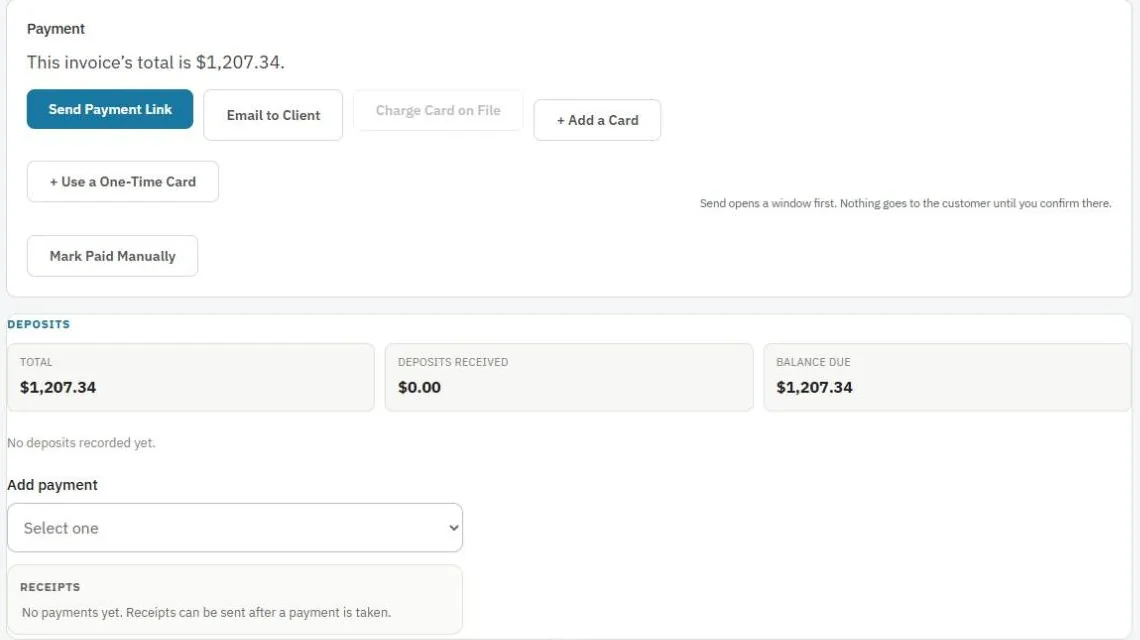
Let the customer pay online
- Send Payment Link emails them a secure link to pay by card (or bank account, if turned on).
- Email to Client sends the invoice with the pay link.
Charge a card now (needs Stripe)
- Charge Card on File charges a card the customer saved before.
- + Add a Card saves a new card on file for this customer, then press Save Card.
- + Use a One-Time Card types a card for this payment only. Press the charge button to confirm the amount.
Card charges only happen after you confirm the amount.
Record cash, check or other payments
- Press Add payment and choose Cash, check or other (record only). Or press Mark Paid Manually if it's paid in full.
- Type the amount and add a note, like the check number.
- Save. The balance due updates.
Partial payments are fine. The invoice stays open until it's fully paid.
Get a signature
Press Sign under Signature to have the customer sign the invoice on your device.
Tip: Payments in JobBills are sent to QuickBooks automatically if you connected it. See Connect QuickBooks Online.
Was this guide helpful?
Related guides
How to send an invoiceHow to connect Stripe to get paid onlineHow to set up the customer portalStill stuck? Inside JobBills, press the round ? button to ask the help chat, or email support@jobbills.com.