How to create an invoice
Make an invoice from scratch, from a finished job or from an estimate.
From a job (most common)
- On a phone: open the ticket, go to the Finance tab and press Create invoice.
- On a computer: open the ticket and press + Create Invoice.
The items added on the job come along to the invoice.
From an estimate
Open the approved estimate and press Convert to Invoice. See Turn an estimate into an invoice.
From scratch
- Go to Invoices and press + New Invoice. On a phone, use the Create invoice button on Home.
- Pick the client.
- Choose the Billing address: the service address, the billing address or a custom address.
- Choose who it's Sent By.
- Set the Due Date: Upon receipt, Net 7, Net 14, Net 15, Net 30, Net 45, Net 60 or a custom date.
- Add lines from your Price Book or type them, and add packages and a discount if needed.
- Press Save Invoice.
The invoice is saved as a Draft until you send it.
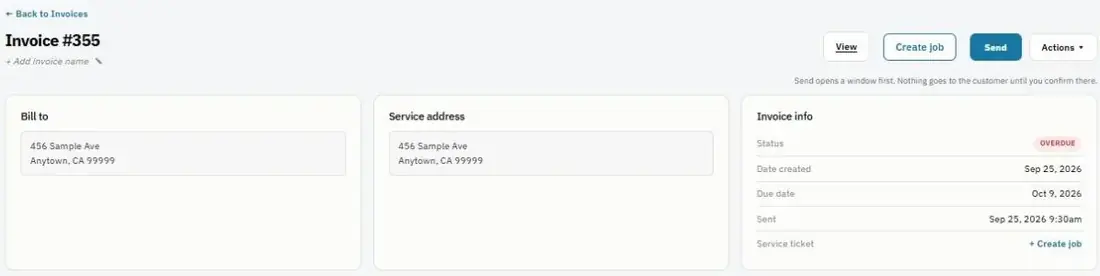
Name an invoice
Press the ✎ next to the invoice number to give it a name, for example "Spring maintenance".
Tip: Change your default due date for all new invoices in Settings → Account Preferences → Default Payment Terms.
Was this guide helpful?
Related guides
How to send an invoiceHow to take a paymentHow to work a job from start to finish (techs)Still stuck? Inside JobBills, press the round ? button to ask the help chat, or email support@jobbills.com.