How to send an invoice
Email the invoice with a link your customer can use to pay online.
Send it
- Open the invoice and press Send.
- Choose Via email.
- Check the To address, and add up to 5 more in Cc.
- Edit the Subject and Message if you like.
- Leave Attach invoice PDF checked to include a PDF copy.
- Press send. Nothing goes out until you confirm in this window.
The customer gets the PDF and a link to view and pay online. Paying online needs Stripe connected. They can pay by card, or by bank account if you turned that on.
Send several at once
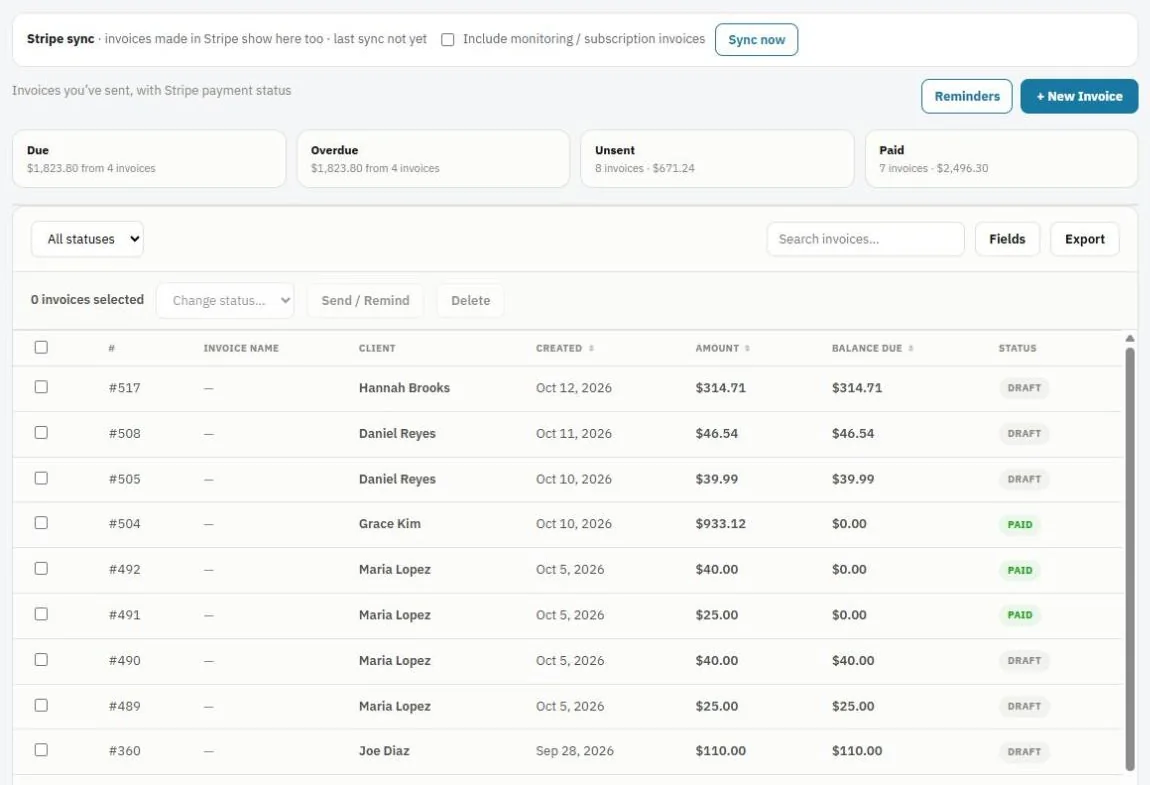
On the Invoices list, tick the invoices and press Send / Remind.
Invoice statuses
Draft, Sent, Paid, Overdue and Void. The cards at the top show what's Due, Overdue, Unsent and Paid. Press one to filter the list.
Void an invoice
Made a mistake on an invoice you already sent? Open it, press Actions ▾ → Void Invoice, then make a new one. A voided invoice stays on file but isn't owed.
Note: Receipts and paid invoices are never emailed automatically. Send one from the invoice when you choose.
Was this guide helpful?
Still stuck? Inside JobBills, press the round ? button to ask the help chat, or email support@jobbills.com.