How to set up the customer portal
Give customers a place to see their invoices, pay online and update their card.
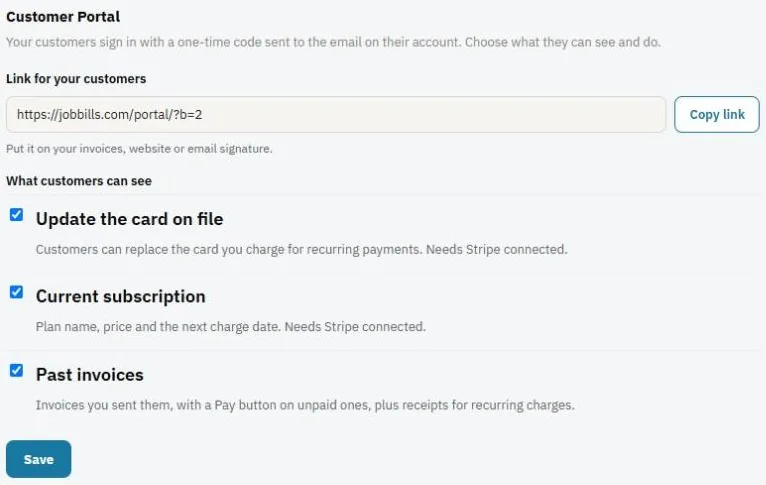
Customers sign in to the portal with a one-time code sent to the email on their account. No password needed.
Choose what customers can do
- Go to Settings and find Customer Portal.
- Under What customers can see, choose:
- Update the card on file: replace the card you charge for recurring payments (needs Stripe).
- Current subscription: plan name, price and next charge date (needs Stripe).
- Past invoices: invoices you sent them, with a Pay button on unpaid ones, plus receipts.
- Press Save.
If they have a Big Job, they also see it there and can approve change orders.
Share the link
- Press Copy link and put it on your invoices, website or email signature.
- To send it to one customer, open their client page and press Options ▾ → Send customer portal link.
See what your customer sees
On the client's page, press Portal (top right). It opens the portal as that customer, which is handy when walking them through updating a card over the phone.
Note: Pay buttons and card options only show when Stripe is connected.
Was this guide helpful?
Still stuck? Inside JobBills, press the round ? button to ask the help chat, or email support@jobbills.com.