How to connect QuickBooks Online
Send customers, invoices, payments, items and expenses to QuickBooks automatically.
Connect
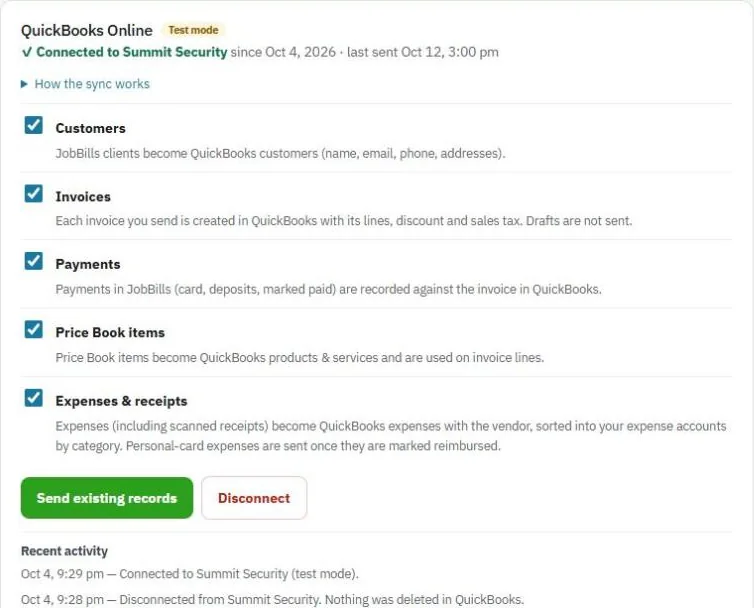
- Go to Settings and find QuickBooks Online.
- Press connect and sign in to your QuickBooks Online company. QuickBooks Desktop isn't supported.
- Choose what to send:
- Customers: name, email, phone and addresses.
- Invoices: each invoice you send, with its lines, discount and sales tax. Drafts aren't sent.
- Payments: card, deposits and marked-paid payments, recorded against the invoice.
- Price Book items: become QuickBooks products & services.
- Expenses & receipts: with the vendor, sorted into your expense accounts by category.
- Press Send existing records to send what's already in JobBills. Customers and items with the same name in QuickBooks are linked instead of duplicated.
New and changed records are sent automatically within a few minutes. Recent activity shows what was sent.
Good to know
- It's one way: JobBills sends to QuickBooks, and nothing comes back. Make changes in JobBills. Changes made in QuickBooks to synced records can be overwritten by the next update.
- Payments recorded only in QuickBooks don't show in JobBills.
- Sales tax goes as a "Sales tax (from JobBills)" line, so totals match.
- Personal-card expenses are sent once they're marked reimbursed.
Press How the sync works for a quick reminder.
Disconnect
Press Disconnect. Nothing is deleted in QuickBooks.
Was this guide helpful?
Still stuck? Inside JobBills, press the round ? button to ask the help chat, or email support@jobbills.com.