How to use the client page
Everything about one customer in one place, and how to start a job, estimate or invoice from it.
Open a client by pressing their name on the Clients page, or search for them at the top.
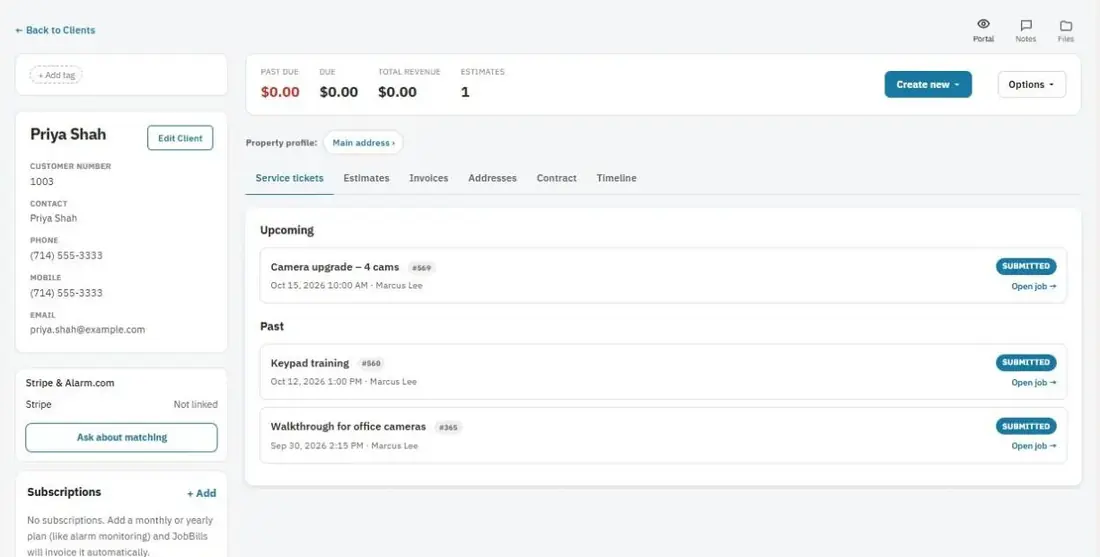
What's on the page
- Contact info and addresses. A client can have more than one location.
- Language: English or Spanish for their estimates, invoices and emails.
- Their jobs, estimates, invoices and payments, plus a timeline of what changed.
- Notes and Files: only your team sees these.
- Tags: press + Add tag to label a client, for example "VIP" or "Monthly service".
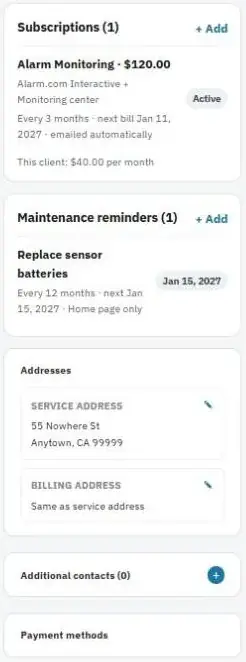
- Additional contacts: add a spouse, office manager or tenant. Check Set as billing contact to send invoices to them (email required).
- Payment methods: saved cards, when Stripe is connected. Press + Add a Card to save one.
- Property profile: equipment, photos, access notes and service history for the address. Press the address next to Property profile (for example Main address ›).
- Subscriptions and Maintenance reminders: press + Add on either card.
Start something for this client
Press Create new ▾ to start a service ticket, estimate or invoice with the client already filled in.
Other options
Press Options ▾ for more, like Send customer portal link. Press Portal (top right of the client page) to see exactly what your customer sees, for example to walk them through updating a card.
Edit a client
Press the ✎ pencil next to their name on the Clients list (or edit from their page), change what you need and press Save Client.
Delete a client
- Open the client's page.
- Press Delete client. It's next to Edit Client on a computer, and at the bottom of the page on a phone.
- Read the message and confirm.
The client moves to Recently deleted for 30 days. Their estimates, invoices and jobs stay as they are, and any monthly or yearly subscriptions stop billing while the client is deleted. Restore them from Recently deleted to put everything back, and billing picks up again. See How to restore something you deleted.