How to add a change order
Add extra work to a Big Job, get the customer's OK, and bill it.
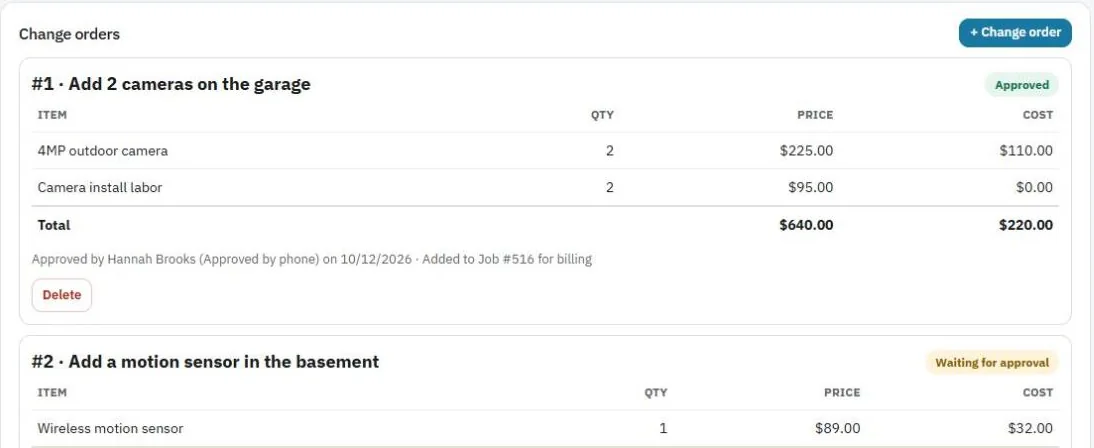
A change order adds work that wasn't on the original estimate, like two more cameras in the garage.
Add it
- Open the Big Job and find Change orders.
- Press + Change order.
- Describe it, and add the items with quantities and prices (from the Price Book or typed in).
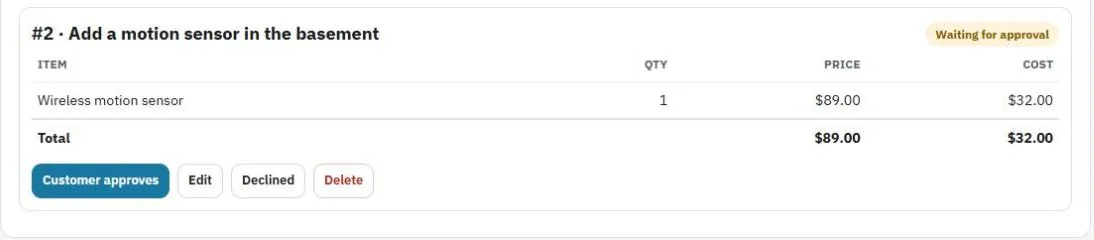
- Save it. It shows as Waiting for approval.
Get it approved
- Online: the customer sees it in their customer portal and approves it there with a signature.
- In person or by phone: press Customer approves, note how they approved (for example "Approved by phone") and save. They can also sign on your device.
- If they say no, press Declined.
Once approved, the change order is added to the contract and the Money and Profit cards update.
Bill it
Approved change orders are added to a visit so they're billed with it. You choose which visit. They then show on that visit's invoice.
Tip: Edit or delete a change order while it's still waiting for approval. After approval it's part of the contract.
Was this guide helpful?
Related guides
How to create a Big JobHow to bill a Big Job in stepsHow to set up the customer portalStill stuck? Inside JobBills, press the round ? button to ask the help chat, or email support@jobbills.com.