How to work a job from start to finish (techs)
On your phone, start travel, start the job, add items, get the signature and complete it.
This is the flow techs use on their phone for every visit.
1. Open the job
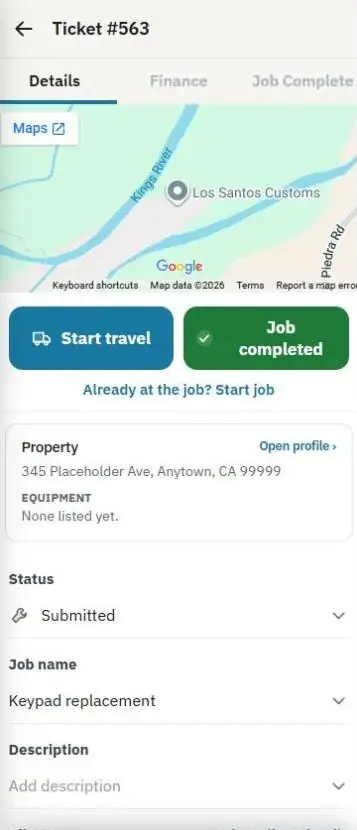
On the home screen, press My tickets and pick the job. The ticket has three tabs: Details, Finance and Job Complete.
2. Head out
Press Start travel when you leave. Your travel time starts.
- If your company uses mileage, you'll be asked for the miles (or they're worked out for you if auto mileage is on).
- Already at the job? Press Already at the job? Start job.
3. Do the work
When you arrive, start the job. Your time on the job is tracked. On the Details tab you can:
- See the customer, address (press it for directions), scheduled time and notes.
- Press Open profile › for the property's equipment, photos and access notes.
- Add photos or files and tech notes. Tech notes are also shown on the invoice.
4. Add what you used
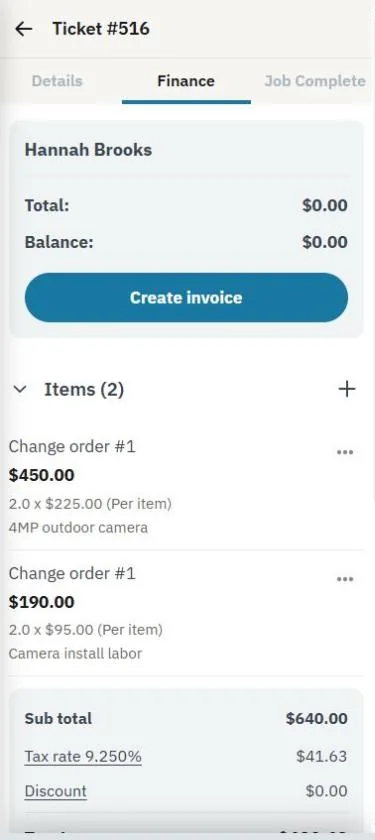
On the Finance tab, press + to add items from the Price Book: parts, labor or services. You'll see the total and balance.
5. Finish up
On the Job Complete tab:
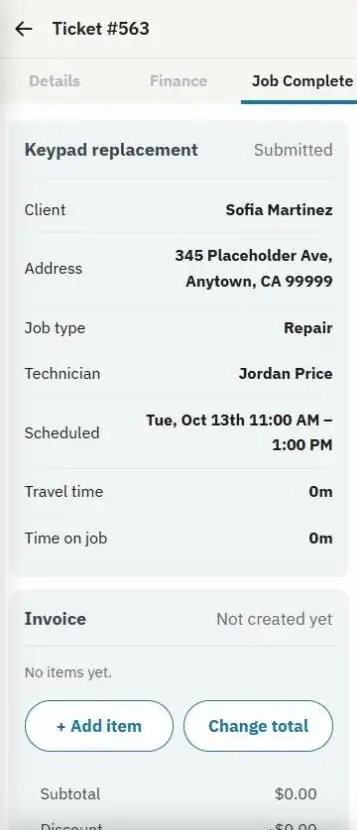
- Check the summary: travel time, time on job and the items.
- If your company uses a checklist, check off each step.
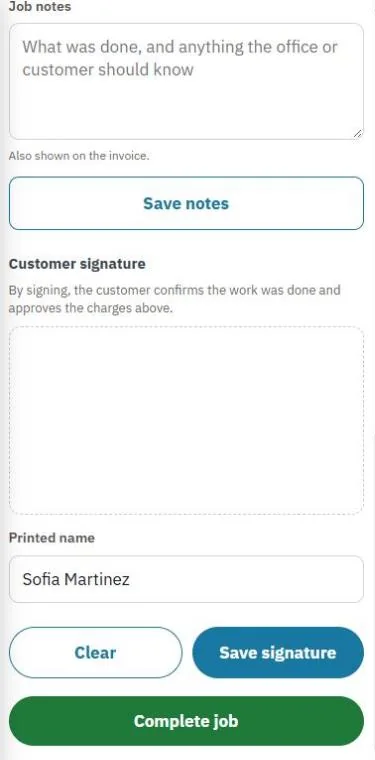
- Type your Job notes and press Save notes.
- Have the customer sign: they type their printed name, sign with a finger, and you press Save signature. Signing confirms the work was done and approves the charges.
- If you collect payment on site, press Take payment, or press Send invoice to email it.
- Press Complete job.
For owners: set up a job checklist
In Settings → Job checklist, add the steps techs must check off, for example "Tested all zones" or "Showed customer the app". Check Require the checklist to complete a job if a job can't be completed without it, then press Save checklist. Billing the customer never needs the checklist.