How to use JobBills on your phone
The phone layout, the home screen buttons, the Android app and notifications.
JobBills works in your phone's web browser. It switches to a phone layout with big buttons made for working in the field.
Open it on your phone
- Open your phone's browser and go to jobbills.com, then sign in.
- Add it to your home screen so it opens like an app:
- iPhone (Safari): press the Share button, then Add to Home Screen.
- Android (Chrome): press the ⋮ menu, then Add to Home screen.
Phone: An Android app (beta) can be downloaded from the JobBills home page. It can also send phone notifications. Apps in the Apple and Google stores are on the way.
The home screen
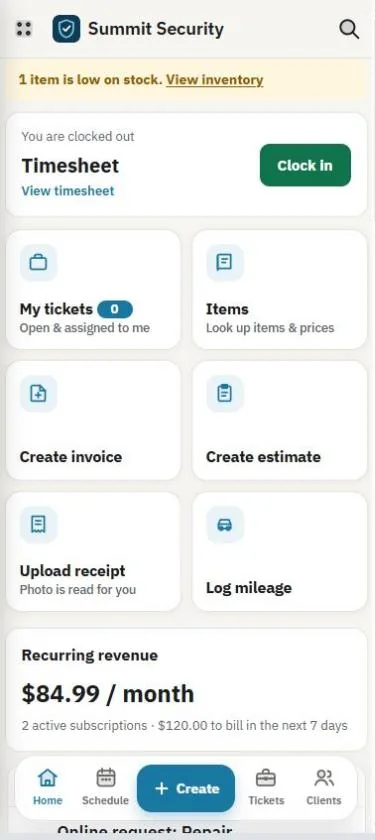
At the top is your clock in / clock out card. Below it are quick buttons:
- My tickets: your open jobs, with how many are assigned to you.
- Items: look up items and prices in the Price Book.
- Create invoice and Create estimate.
- Upload receipt: take a photo of a receipt and it's read for you.
- Log mileage: add a trip.
Below that are the things that need attention, and your upcoming jobs.
Create anything
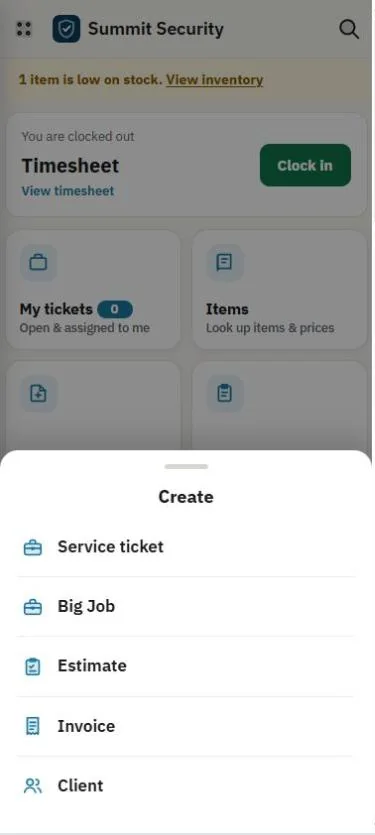
Press the Create button to start a Service ticket, Big Job, Estimate, Invoice or Client.
Phone notifications
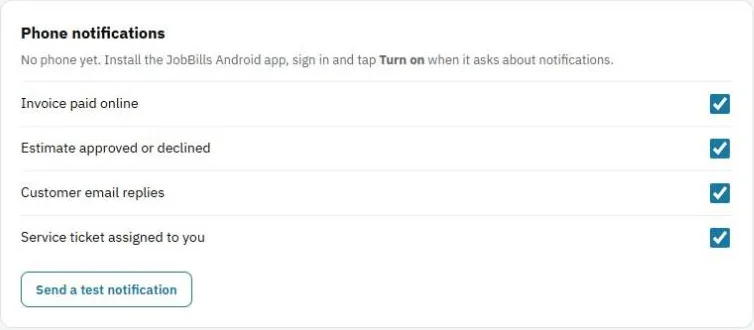
In Settings, under Phone notifications, choose what you want to hear about: invoice paid online, estimate approved or declined, customer email replies, and service tickets assigned to you. Press Send a test notification to check it works. Notifications need the Android app.
Was this guide helpful?
Related guides
How to work a job from start to finish (techs)How to find your way around JobBillsHow to track hours with timesheetsStill stuck? Inside JobBills, press the round ? button to ask the help chat, or email support@jobbills.com.