How to create a service ticket
Book a job for a client, pick the date and time, and assign one or more techs.
A service ticket (job) is one visit to a customer: who, where, when, and what needs doing.
Create a ticket
- Start a new ticket from any of these:
- Service tickets → + Create New
- Schedule → + New Ticket
- A client's page → Create new ▾ → service ticket
- On a phone: Create → Service ticket
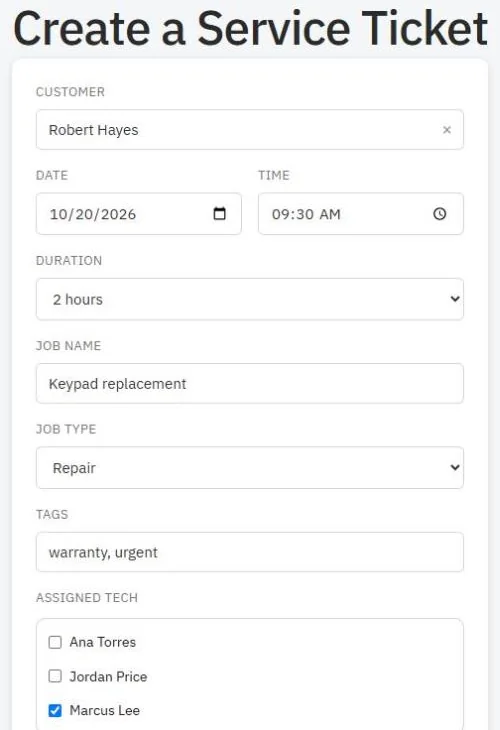
- In the client box, type a name, email, phone or customer # and pick the client.
- Choose the Date, Time and Duration.
- Give it a Job Name, for example "Prewire" or "Keypad replacement".
- Pick a Job Type: Service, Warranty, Repair, Installation, or Custom… to type your own.
- Optional: add Tags separated by commas, for example "urgent, warranty".
- Assign the tech. To send more than one person, check each tech's name.
- Add Notes for the tech, like the gate code or what the customer reported.
- Press Create Ticket.
The assigned tech sees it in My tickets on their phone. If phone notifications are on, they get a notification too.
Tip: Don't know the date yet? Leave it unscheduled. It waits in the Unscheduled jobs panel on the Schedule until you drag it onto a day.
Change a ticket later
Open the ticket, change the date, time, techs, job type or status, and press Save Changes.
Was this guide helpful?
Related guides
How to use the scheduleHow to work a job from start to finish (techs)How to track service tickets and their statusStill stuck? Inside JobBills, press the round ? button to ask the help chat, or email support@jobbills.com.