How to create a Big Job
Group a multi-day install, with all its visits, money and files, in one place.
Use a Big Job for work that takes more than one visit, like installs where you wait weeks or months between rough-in and finish. Everything about the job stays together: visits, estimates, change orders, invoices, files and profit.
From an approved estimate (easiest)
When an estimate is approved, open it. The banner at the top asks what's next. Press Create Big Job. The estimate becomes the contract, and the customer and address are filled in.
From scratch
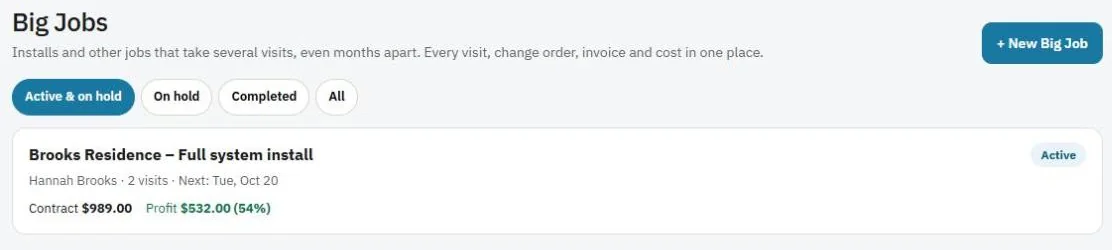
- Go to Big Jobs and press + New Big Job (or Create → Big Job on a phone).
- Pick the client and give it a name.
- Save it, then link the estimate under Estimates & invoices.
Add the visits
Each day on site is a service ticket (a visit).
- Press + New visit to book the next visit for this Big Job.
- Already have a ticket? Use Link an existing service ticket….
- From any ticket, you can also press Add to Big Job.
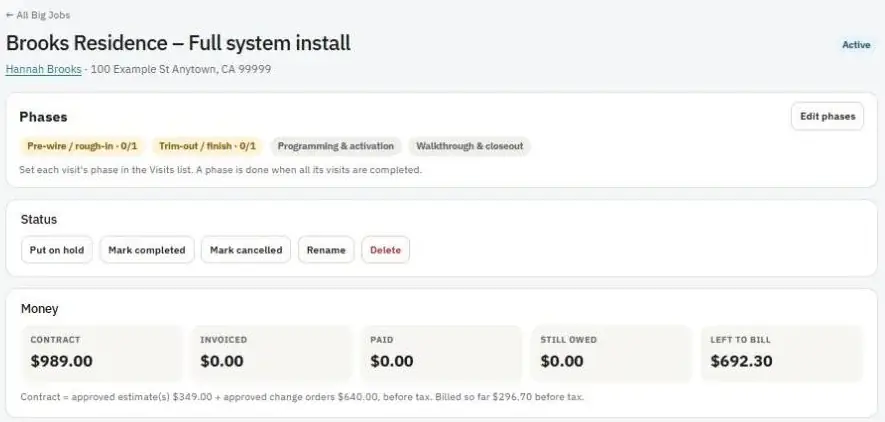
Pick a phase for each visit, like Pre-wire / rough-in or Trim-out / finish. A phase is done when all its visits are completed. Press Edit phases to change the phase names.
Waiting on something?
Press Put on hold while you wait on another trade, like drywall, and set a follow-up date. When the date comes, the Big Job shows under Needs attention on Home so it doesn't get forgotten.
Finish
Under Closeout: do the final walkthrough with the customer, get their sign-off signature, and set the warranty. Then press Mark Big Job completed.