How to track hours with timesheets
Clock in and out, see who's working, fix mistakes and download hours for payroll.
Clock in and out
- On a phone: use the clock card at the top of the home screen.
- On a computer: press Clock in on Home or on the Timesheets page.
Press it again to clock out.
Note: Alarm dealers: if you have an Alarm.com account still on test when you clock out, JobBills reminds you to take it off test first.
See the week
On Timesheets, use ‹ › to move between weeks. Pick Everyone or one person. Each person's total hours for the week is shown.
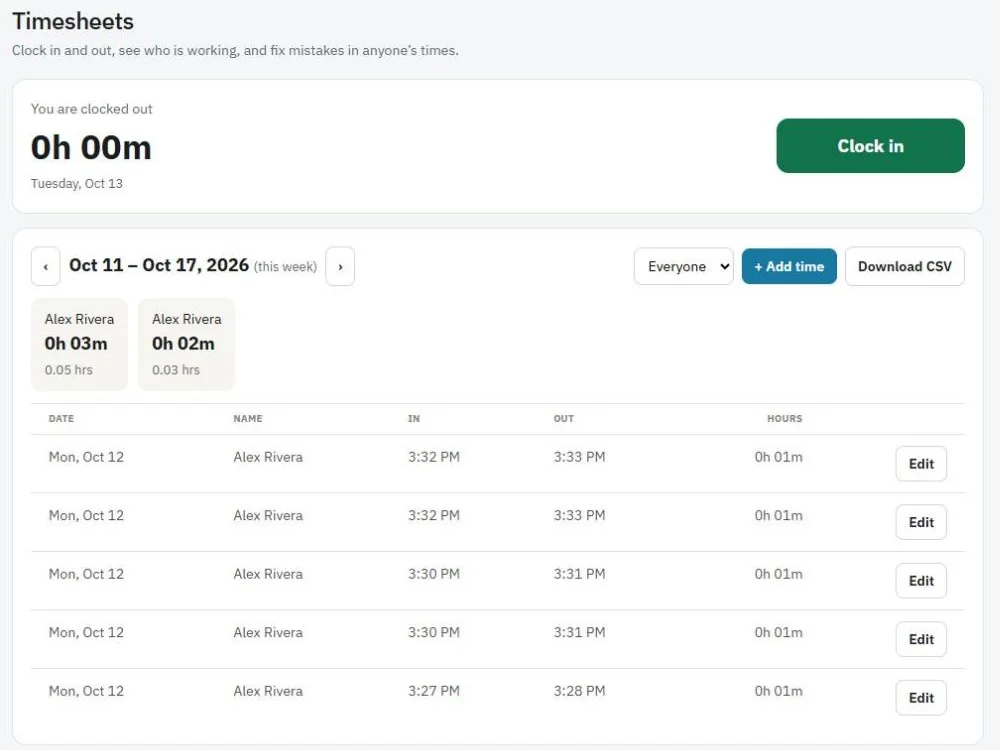
Fix a mistake
- Press Edit on the entry.
- Change the clock-in or clock-out date and time.
- Add a Note, for example "Forgot to clock out".
- Press Save. To remove it, press Delete entry.
To add time someone forgot, press + Add time, pick the Team member and enter the times.
Payroll
Press Download CSV to get the hours as a spreadsheet for payroll or your accountant.
Tip: Travel time and time on each job are tracked separately on the service tickets, so you can see where the day went.
Was this guide helpful?
Related guides
How to add your teamRoles and permissions: what each person can see and doHow to work a job from start to finish (techs)Still stuck? Inside JobBills, press the round ? button to ask the help chat, or email support@jobbills.com.