How to turn features on or off
Hide the parts of JobBills your business doesn't use, like Inventory or Mileage, and choose the AI helpers.
JobBills only shows the parts your business turns on. Estimates and invoices are always on.
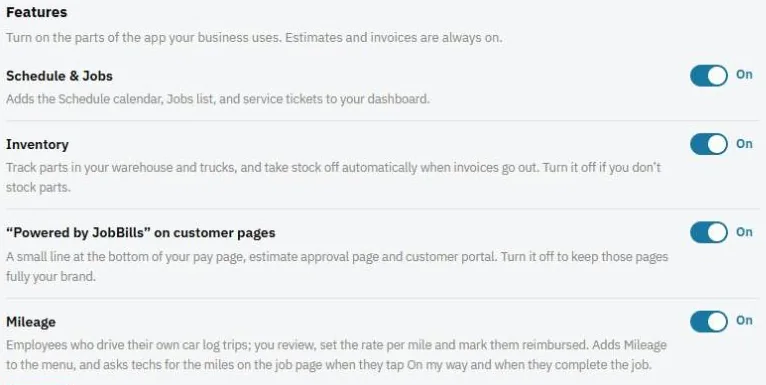
Turn a feature on or off
- Go to Settings and find the Features card.
- Switch each one on or off:
- Schedule & Jobs: the Schedule calendar, Service tickets list and job pages.
- Inventory: track parts in your warehouse and trucks.
- Mileage: employees log trips in their own car and you pay them back.
- "Powered by JobBills" on customer pages: a small line at the bottom of your pay page, estimate approval page and customer portal.
- Press Save.
AI features
The AI features card lists the optional helpers. Each one only suggests and explains. A person always decides and sends.
- Help chat: answers how-to questions from the ? button. It never sees your customers.
- Customer match assistant: explains why a customer was or wasn't matched when importing.
- Email reply drafts: writes a reply on the Emails page for you to edit.
- Receipt scanning: reads a photo of a receipt on the Expenses page.
Turn off any you don't want.
Was this guide helpful?
Related guides
How to add your business details and logoHow to track inventory in your warehouse and trucksHow to log and pay back mileageStill stuck? Inside JobBills, press the round ? button to ask the help chat, or email support@jobbills.com.