How to export your data or close your account
Download a full copy of your business data any time. Pause or close the account if you need to.
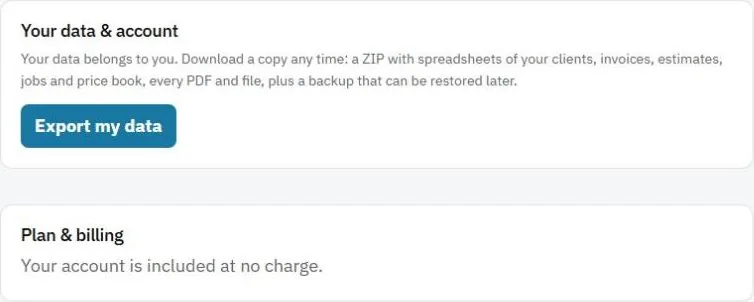
Your data belongs to you. You can download a full copy at any time.
Export your data
- Go to Settings and find Your data & account.
- Press Export my data.
You get a ZIP file with:
- Spreadsheets of your clients, invoices, estimates, jobs and Price Book.
- Every PDF and file.
- A backup that can be restored into a JobBills account later.
Pause your subscription
If business is slow, press Pause subscription. While paused, the account is read-only: you can sign in and see everything, but not add or change anything. Your data stays exactly as it is. Press Resume now on the Settings page any time.
Close your account
- Press Close account & delete my data.
- Choose a reason (it helps us improve) and confirm.
The account closes after a short waiting period, and we email you an Undo link in case you change your mind. Export your data first if you want a copy.
Note: Only the account owner can export data, pause or close the account.
Was this guide helpful?
Related guides
How to turn on two-step sign-inHow to add your business details and logoHow to run reportsStill stuck? Inside JobBills, press the round ? button to ask the help chat, or email support@jobbills.com.