How to track inventory in your warehouse and trucks
Know what's in stock, move parts to trucks, and get a warning when something runs low.
Turn on Inventory in Settings → Features first.
Set it up
- Go to Inventory and press Warehouse & trucks. Add your warehouse and each truck.
- Press Choose items to track and pick the Price Book items you stock.
- Set a Reorder at number for each item to get a warning when it runs low.
Day to day
- Receive stock when parts arrive from your supplier.
- Move stock to load a truck from the warehouse, or between trucks.
- Count / adjust fixes the numbers after a stock count.
- Parts on invoices come out of stock automatically. In Settings on the Inventory page, choose when that happens.
See what you have
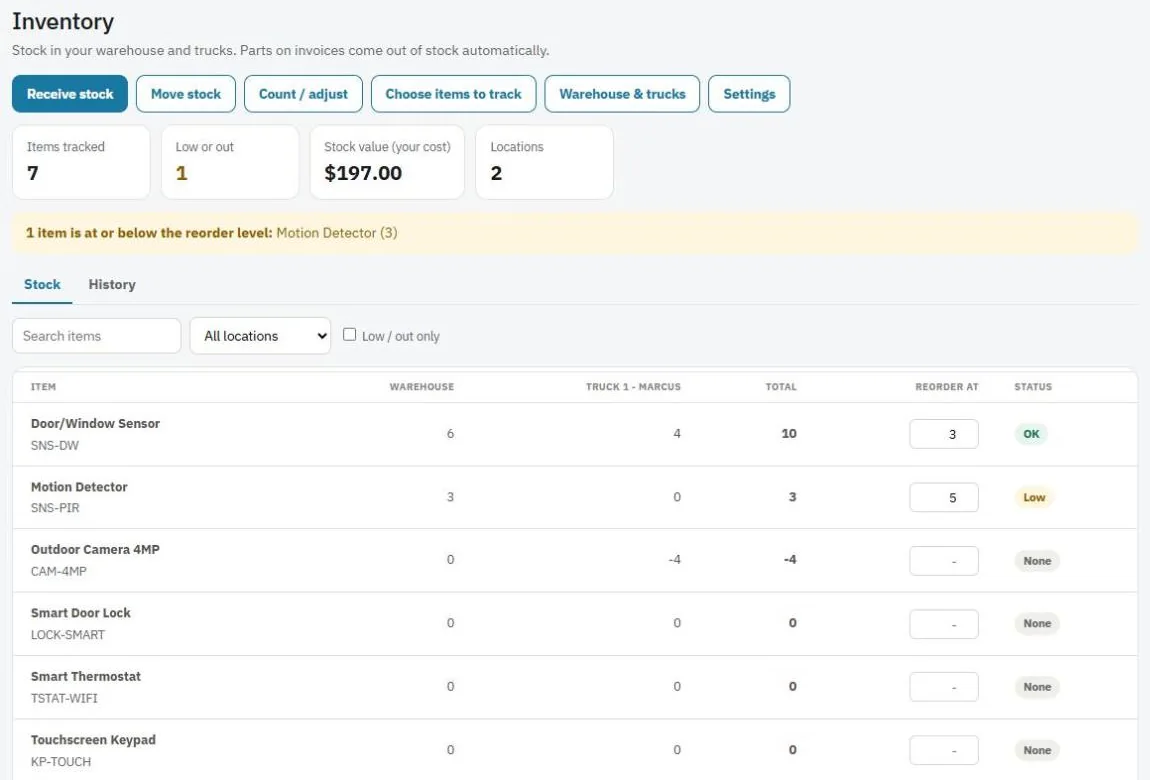
- The Stock tab shows each item by location, the total and its status (OK, Low or out).
- Check Low / out only to see what to reorder.
- Use the location picker to see one truck.
- The History tab shows every change.
- The cards at the top show items tracked, low or out, stock value at your cost, and locations.
Tip: The Home page warns you when an item is at or below its reorder level.
Was this guide helpful?
Related guides
How to add items to your Price BookHow to turn features on or offHow to create an invoiceStill stuck? Inside JobBills, press the round ? button to ask the help chat, or email support@jobbills.com.