How to log and pay back mileage
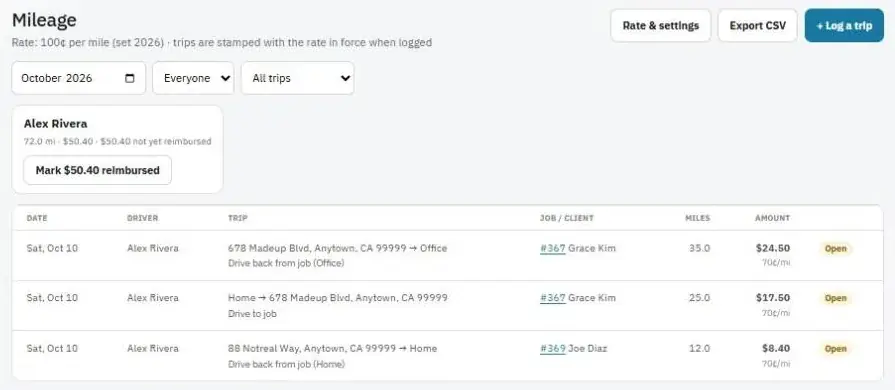
Employees log trips in their own car, and you set the rate and mark them reimbursed.
Turn on Mileage in Settings → Features first.
Set the rate
- Go to Mileage (under More in the menu) and press Rate & settings.
- Set the rate per mile. Many businesses use the IRS standard mileage rate.
- Choose whether techs are asked for miles on the job, and turn on auto mileage if you want the miles worked out for them.
- Save. Each trip keeps the rate that applied when it was logged.
Log a trip
- On a job: when a tech presses Start travel and when they complete the job, they're asked for the miles (or they're filled in automatically with auto mileage).
- By hand: press + Log a trip (or Log mileage on the phone home screen), enter the from and to, miles and job.
Pay people back
- Pick a person and Not reimbursed to see what's owed.
- Pay them the way you normally do.
- Press Mark … reimbursed.
Press Export CSV for your records.
Note: Auto mileage uses the tech's location when they press Start travel and the job's address to work out the driving distance. Check with your accountant about how you reimburse mileage.
Was this guide helpful?
Related guides
How to scan a receipt and log expensesHow to work a job from start to finish (techs)How to turn features on or offStill stuck? Inside JobBills, press the round ? button to ask the help chat, or email support@jobbills.com.