How to set up sales tax and run the sales tax report
Charge the right rate for each city, and see taxable sales and tax collected for your return.
Turn on sales tax
- Go to Settings → Billing and find Sales tax.
- Turn on Charge sales tax.
- Keep a rate for each city you work in:
- Reload California rates loads every California city's rate.
- + Add city adds a city by hand.
- Tap a rate to edit it. Rates you edited show in blue.
- Press Apply rates to clients so each client gets their service city's rate.
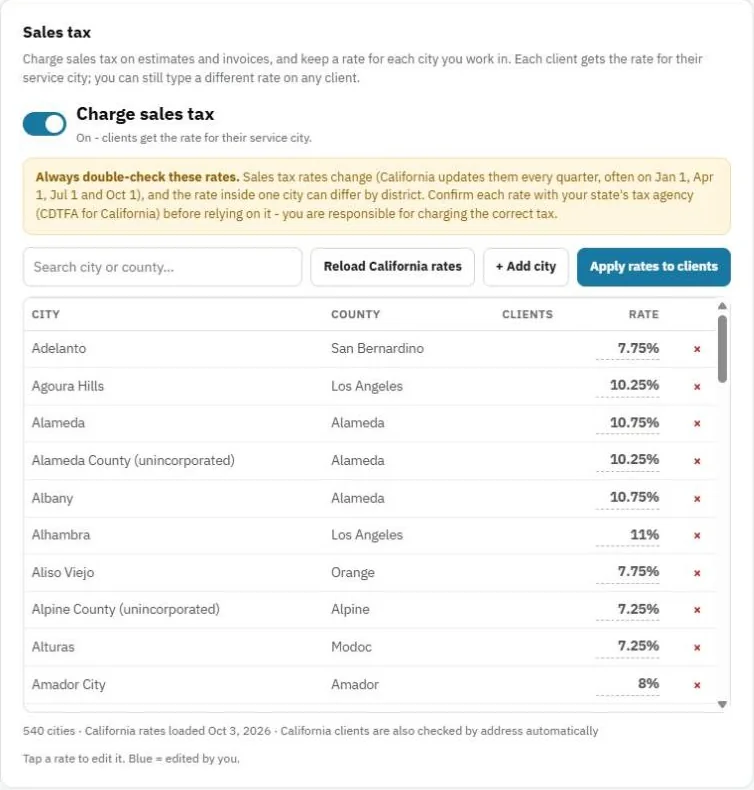
Each client gets the rate for their service city automatically. You can type a different rate on any client, for example 0 for a tax-exempt customer.
Warning: Always double-check rates with your state's tax agency (CDTFA in California). Rates change, often every quarter, and can differ by district inside a city. You are responsible for charging the correct tax. JobBills doesn't file or pay sales tax for you.
Clients in another state
JobBills can't look up out-of-state rates. Those clients show a yellow notice. Set their rate by hand (or 0) and check with that state's tax agency.
The sales tax report
- Go to More → Reports in the menu and press the Sales tax tab at the top.
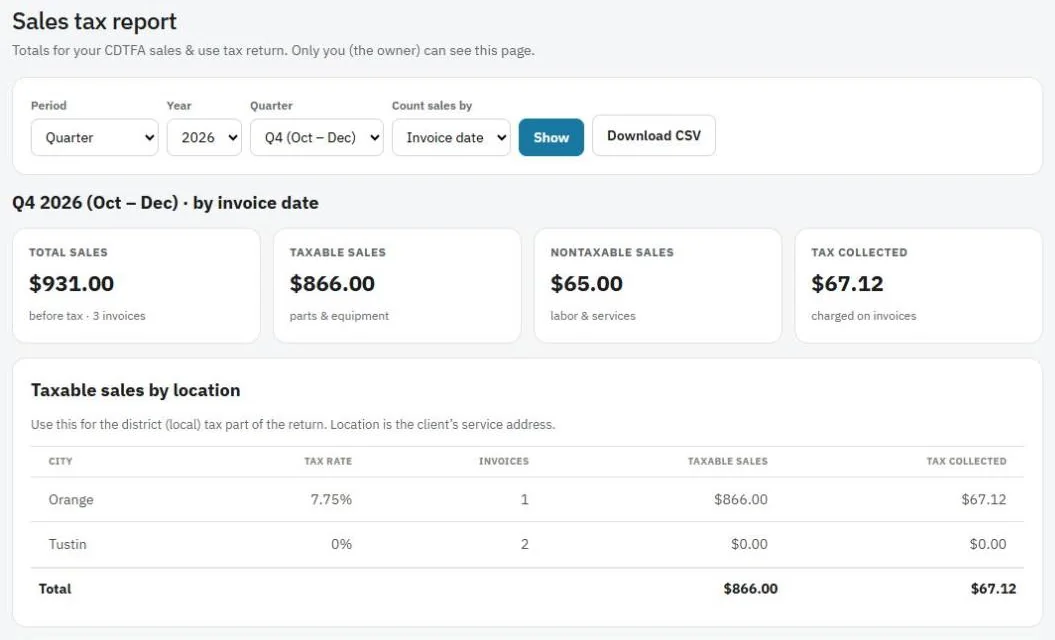
- Choose the Period (Quarter, Month, Year or Custom dates) and the year, quarter or month.
- Under Count sales by, choose Invoice date or Date paid. Use whichever your tax agency asks for.
- Press Show.
You'll see taxable sales and tax collected by city, plus every invoice with its total, taxable and non-taxable amounts, rate and tax.
Was this guide helpful?
Still stuck? Inside JobBills, press the round ? button to ask the help chat, or email support@jobbills.com.