How to add items to your Price Book
Add your parts, labor and services one at a time or import a price list, and bundle items into packages.
Your Price Book (Items in the menu) holds everything you sell, with your price and your cost. Pick items from it on estimates, invoices and jobs.
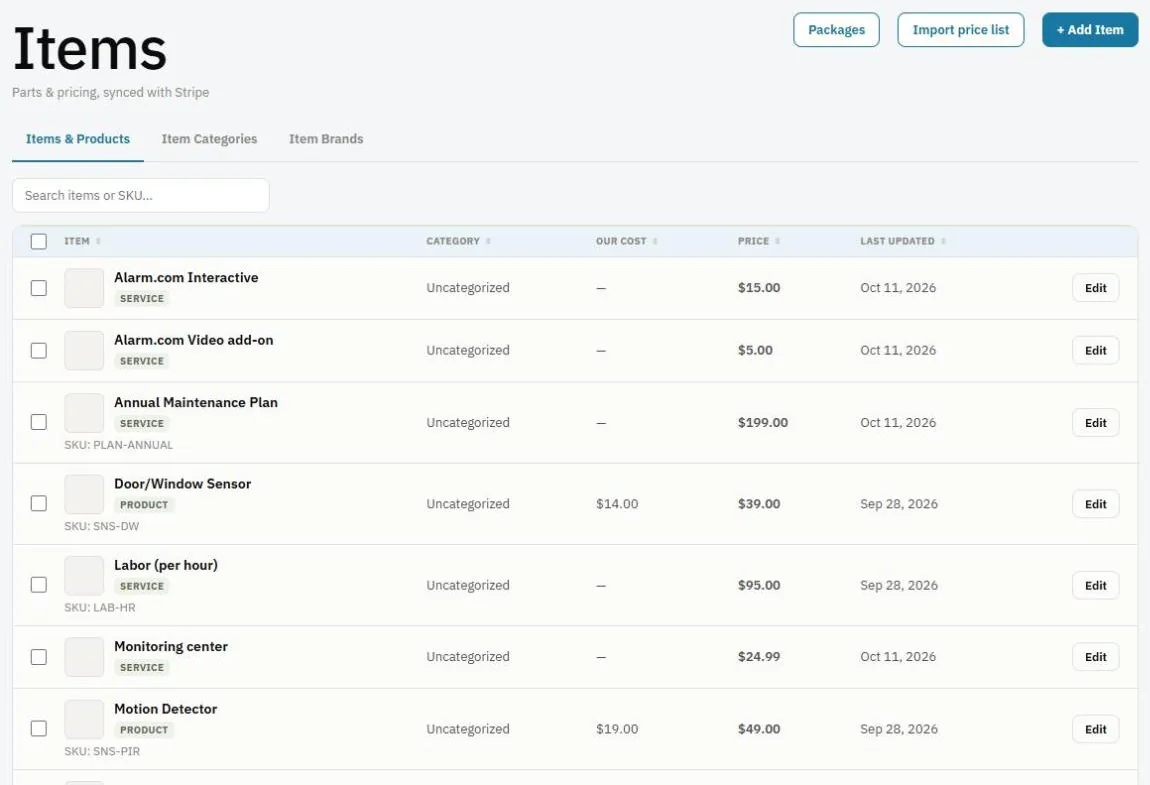
Add an item
- Go to Items and press + Add Item.
- Type the Item Name (required) and SKU if you use one.
- Enter the Price (what the customer pays) and Unit Cost (what you pay).
- Pick an Item Type: Product, Service, Hours, Expense, Equipment or Warranty.
- Optional: pick a Brand, add a Description, and press Browse… to add it to a category.
- Press Save Item.
Note: Technicians never see your costs or profit.
Import a price list
- Go to Items and press Import price list.
- Choose your spreadsheet (for example an export from your supplier or your old software).
- Match the columns (name, SKU, price, cost) and import.
Organize with categories
Tick items in the list, choose a category in Choose a category…, and press Add to category. Use Remove from category or Delete selected the same way.
Packages
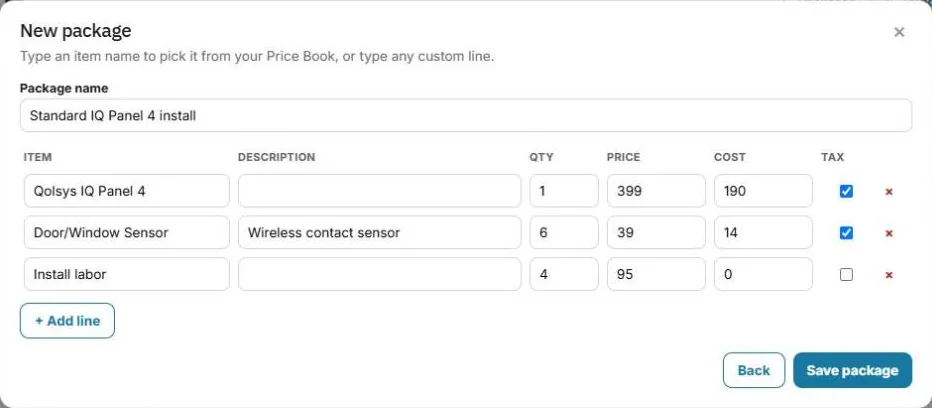
A package is a group of items you often sell together, for example a standard install.
- Make one: on an estimate or invoice, add the lines and press Save as package. Or go to Items → Packages.
- Use one: on an estimate or invoice, press Add package and pick it. All its lines are added at once.
Subscription items
For monthly or yearly plans, check This is a subscription product. Check Charge sales tax on this item in subscriptions if the plan is taxable.
Was this guide helpful?
Related guides
How to create an estimateHow to track inventory in your warehouse and trucksHow to create an invoiceStill stuck? Inside JobBills, press the round ? button to ask the help chat, or email support@jobbills.com.