How to take service requests online
Share a form with customers. Each request becomes an unscheduled ticket automatically.
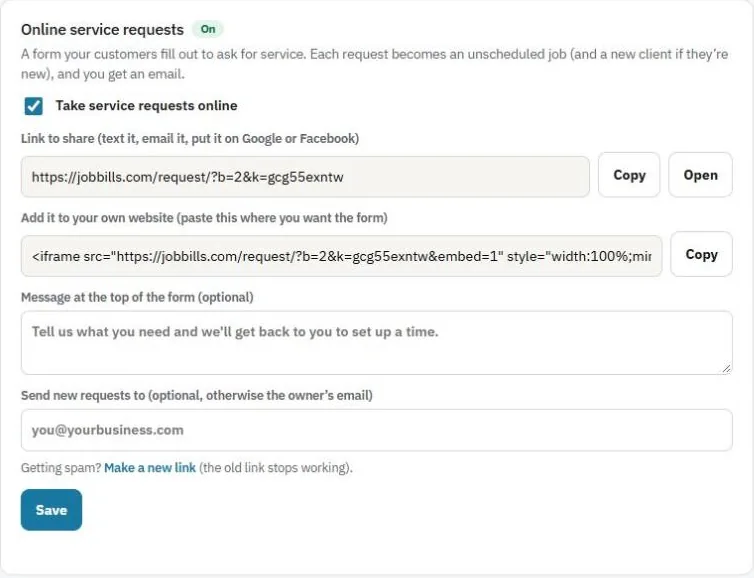
Customers fill out a short form to ask for service. Each request becomes an unscheduled service ticket, plus a new client if they're new, and you get an email.
Turn it on
- Go to Settings and find Online service requests.
- Check Take service requests online.
- Optional: add a Message at the top of the form, for example your service area or hours.
- Optional: under Send new requests to, type the email that should get them. Otherwise they go to the owner's email.
- Press Save.
Share the form
- Link to share: press Copy and text it, email it, or put it on your Google Business Profile or Facebook page. Press Open to see the form.
- Add it to your own website: press Copy next to the website code and paste it where you want the form to appear.
When a request comes in
It shows on Home under things that need attention, and in Service tickets as Unscheduled. Schedule it like any other ticket. See Use the schedule.
Tip: Getting spam? Press Make a new link. The old link stops working, so share the new one.
Was this guide helpful?
Still stuck? Inside JobBills, press the round ? button to ask the help chat, or email support@jobbills.com.